
Table of Contents
On 21 October 2026, the PHP team released emergency patches for two critical remote code execution vulnerabilities: CVE-2026-109618 and CVE-2026-109619 (dubbed “PHP2Shell”, rated CVSS 9.2).
If you manage a WordPress site, you may have seen automated alert emails from Wordfence, Sucuri, or your web host. When you log into your WordPress admin, everything looks green and up to date.
Here is the plain truth: WordPress cannot patch this for you. The bug exists inside the PHP engine itself, not in WordPress core or any plugin.
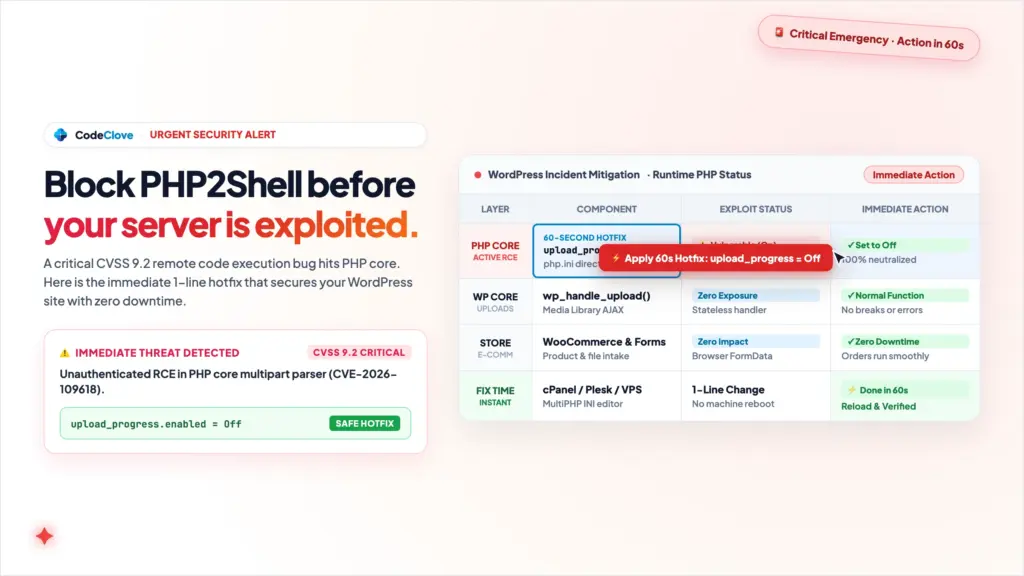
The good news: you do not need to panic, take your site down, or wait for your host to upgrade PHP. You can close this vulnerability in 60 seconds with one safe configuration line.
session.upload_progress.enabled = OffSetting this to Off neutralizes the attack vector completely. It will not break your media library, your form plugins, or your WooCommerce store.
Prefer an Engineer to Handle It? If you run a live store, school portal, or client sites and prefer not to edit server files yourself, our team provides fixed-price engineering support through CodeClove Services. Whether you need an emergency audit via a 1-Day Engineering Sprint ($149) or Turnkey Setup ($49), our senior engineers verify your packages, apply the hotfix, and test your uploads with zero downtime.
Truth Box: What WordPress Site Owners Need to Know
| Question | The Honest Answer | What It Means for You |
|---|---|---|
| Can WordPress auto-update fix this? | No. | This is a PHP runtime flaw, not a WordPress plugin or theme issue. |
| Is my site vulnerable right now? | Yes, if running PHP 8.2 through 8.5 with default settings. | Most standard PHP configurations have upload progress turned on. |
| Will turning it off break image uploads? | No. Zero impact. | WordPress uses browser AJAX (FormData) and its own upload handlers. |
| Do I need to reboot my server? | No. | A quick PHP-FPM or web server reload applies the change instantly. |
| Which PHP versions have the official fix? | PHP 8.2.35, 8.3.36, 8.4.27, and 8.5.12. | Update to these releases or apply the 1-line hotfix today. |
What Actually Happened
To exploit PHP2Shell, an attacker does not need an admin login, a subscriber account, or an existing cookie. They only need a public URL that accepts POST requests, which every WordPress site does.
When a file upload request reaches your server, PHP parses that data before WordPress even boots.
Back in 2012, PHP 5.4 introduced session.upload_progress so old web applications could track file uploads before browsers had progress bars. PHP maintainers left it enabled by default in stock php.ini files.
In unpatched PHP versions, sending malformed multipart form data causes the PHP engine to run out of memory while setting up the request. During memory cleanup, PHP tries to use data structures that were never initialized. This use-after-free flaw lets an attacker execute arbitrary commands on your server.
Because this memory corruption happens before index.php loads, WordPress plugins like Wordfence and Sucuri never get a chance to inspect or block the request.
Step 1: Check Your Site in WordPress Site Health
You do not need SSH terminal access to check your current status. You can verify it directly inside WordPress:
- Log into your WordPress dashboard.
- Go to Tools > Site Health.
- Click the Info tab near the top.
- Click to expand the Server section.
- Look for your PHP version and the
session.upload_progress.enabledline.
If your site is already running PHP 8.2.35, 8.3.36, 8.4.27, or 8.5.12, your hosting provider has applied the official binary update. You are protected.
If you are on an older release and session.upload_progress.enabled is On, apply the quick fix below.
Why Turning It Off Won’t Break WordPress
The most common fear among site owners is: “If I disable upload progress, will users still be able to upload images, product photos, or documents on my site?”
Yes. They will work exactly as they do right now.
Here is why:
WordPress has never used PHP native sessions for file uploads.
* The Media Library: When you drag an image into Media > Add New, your browser uses JavaScript (FormData and modern XMLHttpRequest / Fetch events via Plupload). The browser itself tracks the byte transfer and animates the progress bar.
* Saving the File: Once the file reaches the server, WordPress receives it through standard PHP file handling ($_FILES) and passes it to wp_handle_upload(). It never checks PHP session progress variables.
* Plugins and Portals: WooCommerce, Fluent Forms, Gravity Forms, and our own CodeClove School Management Pro and HR Press Pro all use native WordPress upload filters.
* Stateless by Default: WordPress core does not even start native PHP sessions (session_start()) during normal requests.
Turning off session.upload_progress takes away the vulnerable C code without affecting anything your WordPress site actually relies on.
The 60-Second Fix (Pick Your Setup)
Option 1: cPanel or Plesk (Shared Hosting)
If your site runs on standard shared hosting (such as Bluehost, Namecheap, Hostinger, or A2 Hosting):
- Log into your cPanel dashboard.
- In the search bar at the top, type
MultiPHP INI Editorand click it. - Select your WordPress website from the dropdown.
- Click on the Editor Mode tab.
- Scroll to the bottom of the text box, press Enter, and paste:
ini session.upload_progress.enabled = Off - Click Save.
If you use Plesk: go to Websites & Domains > PHP Settings, find Additional configuration directives, paste session.upload_progress.enabled = Off, and click OK.
Option 2: Cloudways, RunCloud, or Custom VPS (.user.ini)
If you are on managed cloud hosting like Cloudways or RunCloud, you can place a .user.ini file right inside your WordPress root folder:
- Open your SFTP client (like FileZilla) or use your host file manager.
- Go to your site’s root directory (where
wp-config.phplives). - Open or create a file named
.user.ini. - Add this single line:
ini session.upload_progress.enabled = Off - Save the file.
PHP-FPM reads .user.ini files automatically. The change takes effect within 2 to 5 minutes.
Option 3: Nginx + PHP-FPM (Ubuntu / Debian VPS)
If you manage your own cloud instance:
- SSH into your server:
bash
ssh root@your-server-ip
- Open your PHP-FPM configuration file (replace
8.3with your active version):bash nano /etc/php/8.3/fpm/php.ini
- Search for
session.upload_progress.enabledand set it toOff:ini session.upload_progress.enabled = Off
- Save and exit (
Ctrl + O,Enter,Ctrl + X).
- Reload PHP-FPM to apply the change without dropping active traffic:
bash
systemctl reload php8.3-fpm
- Update your packages to get the official distribution backport:
bash
apt update && apt --only-upgrade install php8.3-fpm php8.3-cli php8.3-common
Option 4: OpenLiteSpeed or CyberPanel
- Open your console and edit the active LSPHP configuration:
bash nano /usr/local/lsws/lsphp83/etc/php.ini - Set
session.upload_progress.enabled = Off. - Restart LSPHP gracefully:
bash
killall -9 lsphp
systemctl restart lsws
The Host Ticket Shortcut
If your host has locked down configuration files or you prefer having support handle it, copy and paste this message into your host’s live chat or support ticket:
Subject: Urgent PHP2Shell (CVE-2026-109618) Mitigation
Message: Hello,
Regarding the PHP2Shell vulnerabilities (CVE-2026-109618 and CVE-2026-109619) disclosed on 21 October:
Please ensure that
session.upload_progress.enabled = Offis set in the activephp.inifor my account (or confirm that my PHP runtime has received the security patch).Setting this directive to Off is the recommended safe stopgap and does not interfere with WordPress media uploads. Please reload PHP once updated and confirm when completed.
Thank you.
Why `php -v` Can Mislead You on Ubuntu and Debian
If you run Ubuntu 24.04 and type php -v, you will likely still see:
PHP 8.3.6 (cli) (built: Apr 15 2024 ...)You might think your server is unpatched because the official upstream fix is numbered PHP 8.3.36.
That is normal. Linux distributions like Ubuntu and Debian backport security fixes into their existing package builds rather than bumping the minor version number to prevent breaking server dependencies.
To verify whether your system has the actual patch installed, check the package version:
dpkg -l | grep php8.3If you see an updated build suffix (such as -0ubuntu0.24.04.3 or later), the security patch is already compiled into your server binary.
How to Test Your Site in 15 Seconds
Once you have changed the setting, run this quick check:
- In WordPress admin, go to Tools > Site Health > Info > Server. Confirm
session.upload_progress.enabledsays Off. - Go to Media > Add New.
- Upload any test image.
- Confirm that the progress bar animates normally, the file uploads, and the thumbnail generates cleanly.
Everything will work as expected. The only difference is that the vulnerable PHP memory parser is now completely disabled.
Why This Proves the Value of Self-Hosting
When a high-profile CVE makes headlines, closed SaaS platforms use it to discourage self-hosting: “Self-hosting is too risky. Move your data to our cloud.”
This incident shows the opposite.
When a critical zero-day hits a multi-tenant cloud SaaS provider: * You have zero visibility into whether their servers are vulnerable or being scanned. * You cannot patch it. You must wait and hope their team fixes it before customer data leaks. * When one tenant cluster is breached, everyone’s database is exposed together.
With self-hosted WordPress, you have direct perimeter control: 1. You can apply a 1-line configuration change that closes the attack surface in 60 seconds. 2. You can restrict staff and administrative endpoints using office IP whitelisting in HR Press Pro or at the server level. 3. Your database remains in your own private environment, completely isolated from third-party breaches.
Self-hosting gives you real ownership and immediate incident control.
Common Misconceptions
Myth 1: “My WordPress security plugin will automatically stop PHP2Shell.”
Correction: Security plugins like Wordfence and Sucuri run at the application level inside WordPress. PHP2Shell exploits server memory during PHP’s internal request parsing before index.php or any plugin code is loaded. You must apply the fix at the server or PHP configuration level.
Myth 2: “Disabling session upload progress will break my WooCommerce store or contact forms.”
Correction: Neither WooCommerce nor form plugins use PHP native session upload progress. They handle files using browser JavaScript and WordPress core upload functions. Turning off this setting causes zero functional issues.
Myth 3: “I have to wait for my web host to upgrade PHP before my site is safe.”
Correction: You do not have to wait. Setting session.upload_progress.enabled = Off in your cPanel editor, .user.ini, or php.ini closes the vulnerability immediately without needing a full PHP version upgrade.
Frequently Asked Questions
Which PHP versions are vulnerable to PHP2Shell?
All unpatched PHP point releases in active branches (PHP 8.2 prior to 8.2.35, 8.3 prior to 8.3.36, 8.4 prior to 8.4.27, and 8.5 prior to 8.5.12) are vulnerable if session.upload_progress.enabled = On. Older unsupported versions (PHP 7.4, 8.0, 8.1) also contain the flaw and should have the directive disabled immediately.
Can someone exploit PHP2Shell without a username or password?
Yes. CVE-2026-109618 is an unauthenticated vulnerability. The attacker does not need an account or login cookie. Any public URL on your site that accepts POST requests can trigger the vulnerable routine.
Where can I find session upload progress in WordPress?
Go to your WordPress admin screen, click Tools > Site Health, select the Info tab, and expand the Server section. Look for session.upload_progress.enabled.
Will Cloudflare protect my site from this attack?
Cloudflare has deployed managed WAF rules to inspect multipart form headers. While edge firewalls provide a helpful first layer of defense, attackers can sometimes bypass WAF rules using chunked encoding or payload fragmentation. Disabling the directive on your server ensures direct, reliable protection.
Do CodeClove plugins use PHP native sessions?
No. CodeClove School Management Pro and HR Press Pro store all records in dedicated custom MySQL tables and communicate through WordPress native APIs. Neither product relies on PHP native sessions.
Summary Checklist
- [ ] Check Tools > Site Health > Info > Server in your WordPress dashboard.
- [ ] If
session.upload_progress.enabledisOn, setsession.upload_progress.enabled = Offin cPanel,.user.ini, orphp.ini. - [ ] Reload PHP-FPM or restart your web server.
- [ ] Refresh Site Health to confirm the setting shows
Off. - [ ] Upload a test file in Media > Add New to confirm normal operation.
Want Guaranteed Peace of Mind? If you manage busy client websites, a membership portal, or a school management system and want an experienced engineer to audit your server configuration, apply the hotfix, and test your uploads safely, explore our CodeClove WordPress Development & Maintenance Services. We offer fixed-price milestones, 48-hour delivery guarantees, and emergency sprint support with zero disruption to your visitors.