Table of Contents
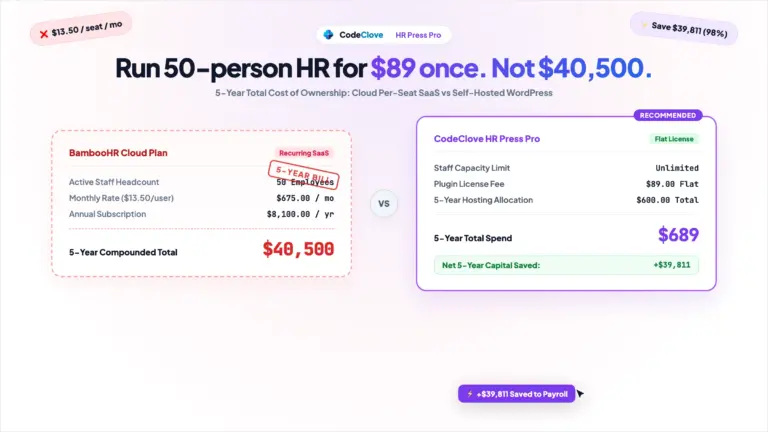
Small businesses spend thousands of dollars annually on per-seat time-tracking software just to record four timestamps per shift. Services like Clockify paid tiers, Hubstaff, and Toggl charge $5 to $20 per employee per month. For a 20-person team, that totals $1,200 to $4,800 every year for basic digital punch cards.
Self-hosting employee time tracking on WordPress eliminates those monthly fees. With HR Press, you log shifts, mid-day breaks, and employee IP addresses inside your own MySQL database. HR Press Lite is free on WordPress.org, while HR Press Pro is a flat $19 (single site) or $89 (unlimited sites).
Below is the step-by-step setup to implement self-hosted employee attendance on WordPress, from directory creation to office IP whitelisting.
Interactive sandbox demo: Test employee clock-in, break logging, office IP restriction, and CSV payroll exports in the live HR Press sandbox demo.
Key Takeaways
– Cost savings: Per-seat SaaS costs a 10-person office $840 to $1,200 annually, while HR Press costs $0 (Lite) or a flat $19 to $89 one-time payment (Pro).
– Database performance: Attendance logs write to a dedicated{prefix}hrp_attendancesSQL table rather thanwp_postmeta, keeping queries under 2 milliseconds across 100,000+ shifts.
– Four-timestamp precision: Each workday records sequentialcheckin,breakin,breakout, andcheckouttimestamps through an automated state machine.
– Office IP whitelisting: Validates client IP addresses against your office router to eliminate buddy punching without biometric hardware.
– One-click payroll export: Filter and export attendance sheets to CSV for quick import into accounting tools like QuickBooks, Tally, or Gusto.
Why per-seat time tracking SaaS drains small business budgets
Per-seat pricing turns a simple database entry into an expanding recurring cost. When an employee clicks “Clock In”, the system records a user ID, timestamp, and IP address. Executing that SQL statement on your existing server costs nothing extra, yet SaaS vendors charge up to $20/month per user.
Common 2026 pricing benchmarks:
– Hubstaff Desk Starter: $7.00/user/month ($840/year for 10 staff; $1,680/year for 20 staff).
– Clockify Team Plan: $9.99/user/month ($1,198.80/year for 10 staff).
– Toggl Track Starter: $10.00/user/month ($1,200/year for 10 staff).
– BambooHR Time Tracking: Billed as an add-on atop a $300-$500/month platform subscription.
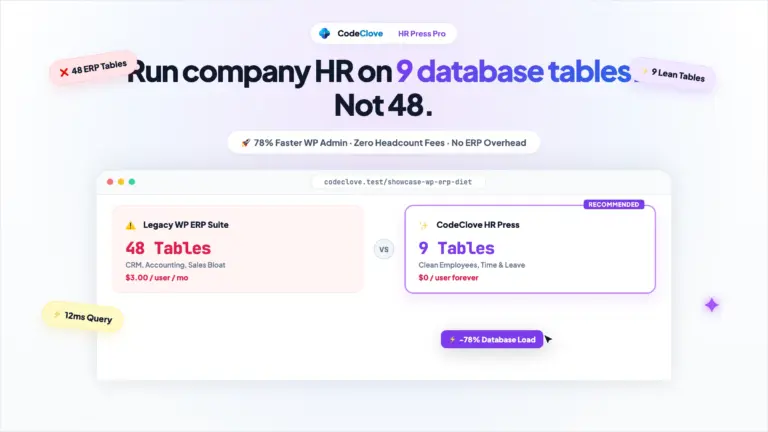
Some legacy WordPress plugins copy this pricing structure. As detailed in our guide to WP ERP alternative, WP ERP Pro charges monthly per-user fees across 48 database tables. Educational institutions face the same challenge, prompting administrators to reduce SaaS fees through self-hosted vs SaaS solutions.
Step 1: Install HR Press Lite from WordPress.org
Install HR Press Lite directly from your WordPress admin dashboard under Plugins > Add New Plugin by searching for HR Press. Click Install Now and Activate.
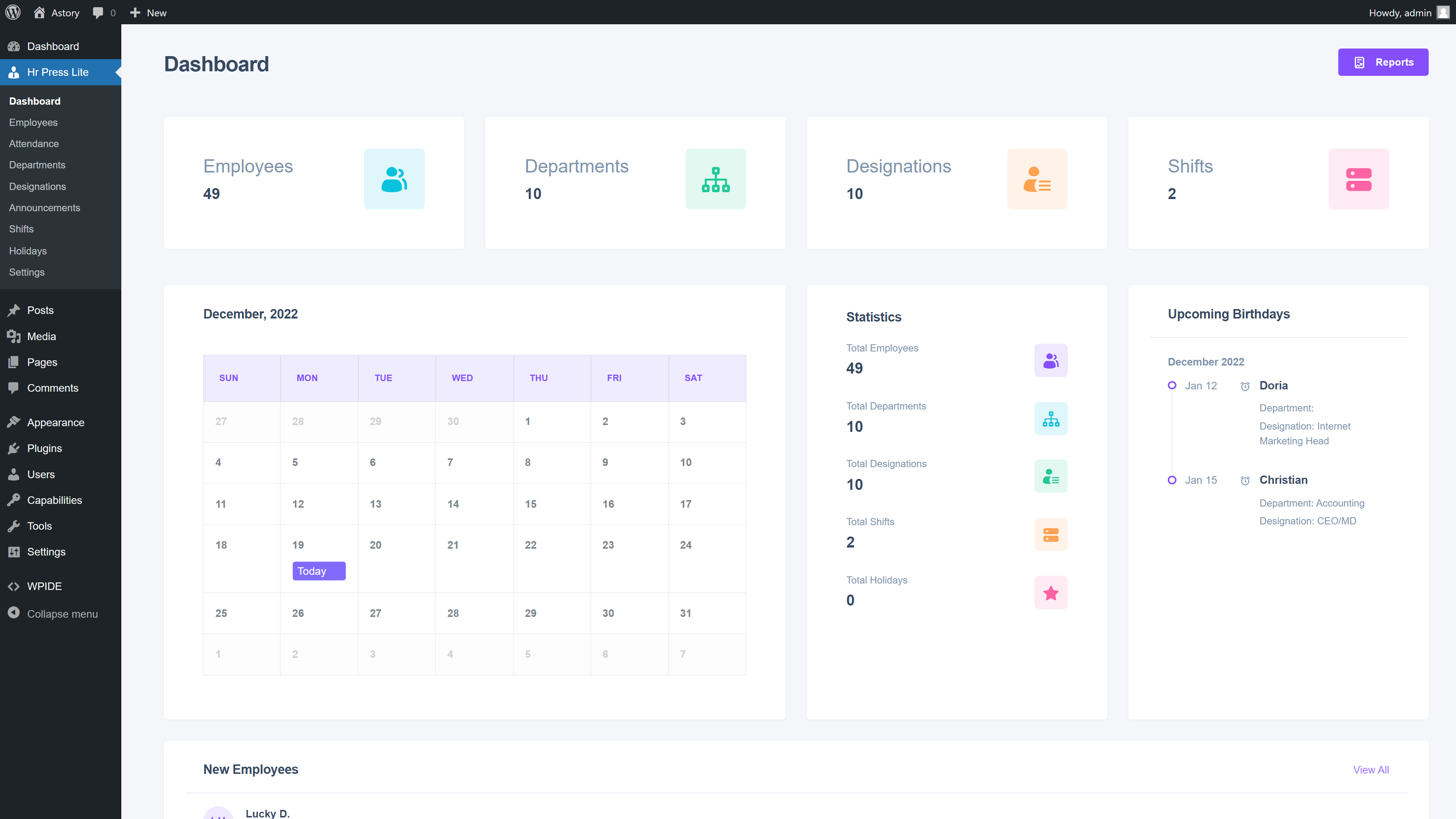
Upon activation, the plugin initializes 14 custom database tables:
– {prefix}hrp_employees: Staff directory records linked to WordPress users.
– {prefix}hrp_departments & {prefix}hrp_designations: Organizational hierarchy.
– {prefix}hrp_attendances: Shift timestamps (checkin, breakin, breakout, checkout) and IP records.
– {prefix}hrp_shifts: Shift definitions, start/end windows, and grace periods.
By storing entries in dedicated tables indexed by employee_id and date, operations remain fast without congesting wp_postmeta. The same approach powers our campus-wide attendance tracking system.
Step 2: Set up the employee directory, departments, and designations
Configure your organizational structure before inviting staff:
- Open HR Press > Departments and create operational units (Operations, Accounts, Engineering).
- Open HR Press > Designations to define job titles under each department.
- Navigate to HR Press > Employees > Add New Employee.
- Enter staff details (Name, Email, Employee ID, Joining Date).
- Attach an existing WordPress user or let HR Press generate subscriber-level accounts and dispatch login credentials automatically.
For larger teams, use Settings > Import/Export to bulk-import rosters from CSV.
Step 3: Set up the employee clock-in and clock-out dashboard
Staff punch in directly from their WordPress admin screen. No public shortcodes or separate portals are required.
HR Press automatically registers the hrp_employee role. When non-admin employees log in at /wp-login.php, their dashboard restricts access exclusively to employee attendance and leave views.
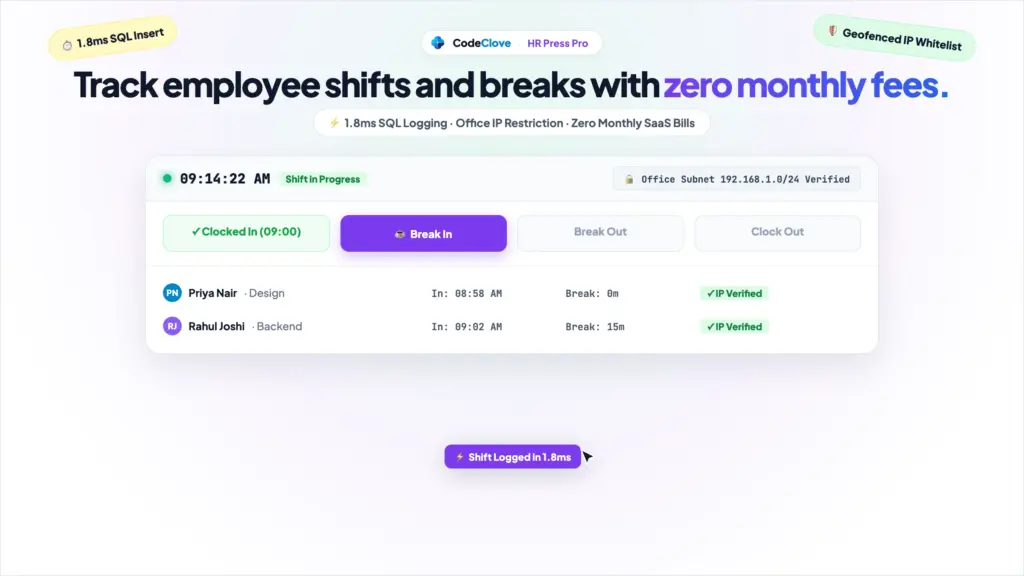
When employees open the panel, the interface queries today’s record. If unpunched, a Clock In button appears alongside server time and shift hours. Once clocked in, options update to Start Break or Clock Out. Under Settings > Attendance, configure the Attendance Threshold (seconds) to prevent accidental immediate double-punching.
Step 4: Log mid-shift lunch and short breaks
Accurate payroll requires separating paid working hours from unpaid lunch periods. HR Press tracks shifts across four sequential database timestamps:
1. checkin: Shift start
2. breakin: Break start
3. breakout: Break end
4. checkout: Shift end
A standard workday sequence:
– 09:00 AM: Employee clicks Clock In. Server records 09:00:12 to checkin, revealing break and checkout buttons.
– 01:00 PM: Employee clicks Start Break. Server records 13:00:05 in breakin.
– 01:45 PM: Employee clicks End Break. Server records 13:45:20 in breakout.
– 05:30 PM: Employee clicks Clock Out. Server records 17:30:44 in checkout, subtracts the 45-minute break from the gross shift, and logs 7 hours 45 minutes of net work.
A server-side state machine validates the sequence, preventing inverted or corrupted timestamps.
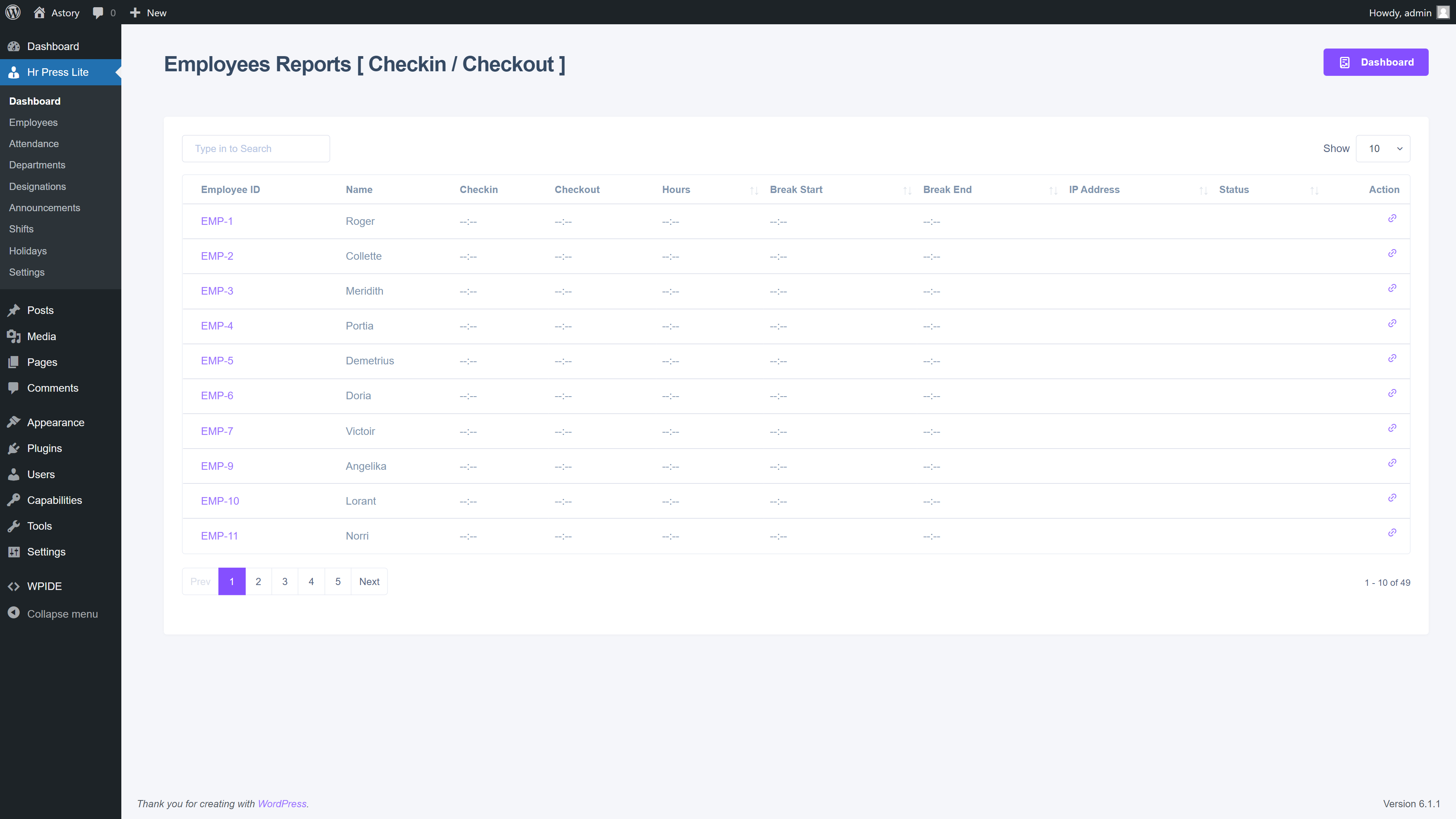
Step 5: View daily and weekly shift logs in the admin dashboard
Managers review company attendance from HR Press > Attendances, filterable by date, department, or individual worker.
Each row details:
– Employee Name, ID, and Department
– Date and Assigned Shift
– Sequential Punch Timestamps
– Net Hours Worked: Calculated automatically as (checkout - checkin) - (breakout - breakin)
– Check-In IP Address: Logged at the moment of check-in
– Status Badges: Present, Late, Early Left, On Break, or Absent
Administrators can manually adjust forgotten clock-outs and save audit notes.
Step 6: Export attendance records to CSV for payroll
At the end of each billing cycle, export attendance data to CSV or Excel. Open HR Press > Attendances, define your date range, and click CSV.
The exported sheet formats data cleanly for accounting platforms:
| Employee ID | Employee Name | Department | Date | Clock In | Break In | Break Out | Clock Out | Net Hours | IP Address | Shift Status |
|---|---|---|---|---|---|---|---|---|---|---|
| EMP-014 | Priya Nair | Operations | 2026-10-23 | 08:58:14 | 13:02:10 | 13:44:50 | 17:31:02 | 07:50:08 | 203.0.113.42 | On Time |
| EMP-019 | David Miller | Support | 2026-10-23 | 09:19:40 | 12:30:00 | 13:15:12 | 17:30:11 | 07:25:19 | 203.0.113.42 | Late (+19m) |
| EMP-022 | Rohan Verma | Engineering | 2026-10-23 | 08:55:03 | 13:10:00 | 13:40:00 | 16:45:00 | 07:19:57 | 203.0.113.42 | Early Left (-45m) |
Upload the file directly into QuickBooks, Xero, Tally, or Gusto. HR Press Pro also includes a native salary calculation ledger (Basic + Allowances - Deductions) and printable PDF payslips, removing external spreadsheet dependency.
Download the Free Employee Timesheet & Attendance CSV Template
Pre-formatted payroll starter file with employee identifiers, clock in/out timestamps, break durations, and net hour calculations. Fully compatible with Excel, Google Sheets, Tally, and HR Press import.
Step 7: Enable office IP whitelisting to eliminate buddy punching (Pro)
Buddy punching occurs when coworkers clock in for late peers or punch in from mobile networks while commuting. Industry benchmarks show that unverified time theft costs businesses 1.5% to 2.2% of gross annual payroll.
HR Press Pro prevents buddy punching without fingerprint hardware by enforcing IP whitelisting. When activated, WordPress verifies client IP addresses on every punch and rejects requests made from outside your office network.
Setting up IP restriction:
- Connect your device to the office Wi-Fi network.
- Open HR Press > Settings > Attendance tab.
- Toggle Enable IP Restriction to On.
- Paste your public office IP address (or multiple branch IPs, one per line) into Allowed IP Addresses.
- Save changes.
Check-in attempts from cellular data or off-site networks fail immediately with a warning to connect to office Wi-Fi.
Step 8: Configure shifts and flag early departures (Pro)
Shift scheduling automatically highlights late arrivals and early departures against assigned work hours.
Shift configuration:
- Open HR Press > Shifts > Add New Shift.
- Specify shift details (e.g.,
Morning Shift, Start:09:00:00, End:17:30:00). - Set a Late Grace Period (e.g., 15 minutes). Punches up to
09:15:00mark asOn Time; punches thereafter flag asLate. - Assign shifts to team members under HR Press > Employees.
If a worker clocks out before 17:30:00, HR Press flags the record as Early Left with the exact shortfall duration. Similar to role-restricted school admissions WordPress setups and parent portal tools, shift settings remain restricted to managers while employees view assigned hours upon check-in.
Frequently asked questions
Is there a free employee time tracker for WordPress?
Yes. HR Press Lite is available for free on WordPress.org. It includes an employee directory, department hierarchies, daily clock-in/out buttons, lunch break logs, shift hours, and CSV exports with zero monthly fees.
What is buddy punching and how do you prevent it in WordPress?
Buddy punching occurs when an employee clocks in on behalf of an absent colleague. HR Press Pro eliminates this by whitelisting your office public IP address, allowing punches only from verified workplace Wi-Fi networks.
Can HR Press track remote workers?
Yes. Office IP restriction is an optional toggle. Disable IP whitelisting for remote or hybrid teams so staff can punch in from home while still recording remote IP addresses and timestamps.
Does HR Press integrate with payroll software?
Yes. HR Press exports shift records to standard CSV files compatible with QuickBooks, Xero, Tally, and Gusto. HR Press Pro also includes a native salary calculation ledger and printable PDF payslip engine inside WordPress.
Is HR Press Lite sufficient for a 10-person office?
Yes, if your business requires basic time tracking, break records, and CSV exports. If you need office IP security, automated leave request workflows, or corporate PDF payslips, upgrade to HR Press Pro ($19 single site; $89 unlimited).
Start tracking employee time without recurring SaaS bills
Paying $840 to $3,500 every three years for basic time tracking makes little financial sense when running WordPress. Self-hosting attendance keeps employee records private while eliminating recurring per-seat software expenses.
- Test the live demo: Try employee check-in, break tracking, and IP restriction in the HR Press interactive sandbox.
- Download free: Install HR Press Lite from WordPress.org to deploy your directory and time clock today at $0.
- Upgrade to HR Press Pro: Unlock office IP whitelisting, leave approval queues, and PDF payslips with HR Press Pro for a flat one-time fee of $19 (single site) or $89 (unlimited sites).