Table of Contents
Most schools don’t decide to adopt school management software on a quiet afternoon. They decide it in the third week of admissions, when a parent says they paid last month, the accounts clerk can’t find the receipt, and the class teacher is working from an attendance sheet that disagrees with the office’s copy.
In short: school management software is a system that keeps a school’s records and routine processes in one place. That covers students, staff, admissions, attendance, fees, timetables and parent communication. It replaces scattered spreadsheets, paper registers and messaging groups with one shared record. It doesn’t teach students or fix a broken process, but it makes a working process faster, more traceable and less dependent on individual people.
This guide explains what the software does by following real school workflows, not by listing features. It also covers where it falls short and how to choose and introduce it without disrupting a term.
What is school management software?
School management software is a digital platform that handles the administrative side of running a school: who is enrolled, who is present, who owes what, who teaches which class and when, and who needs to be told about it.
You’ll meet several overlapping terms, and vendors use them loosely:
- School management system / school administration software: the everyday names for software that covers a school’s operations.
- SIS (student information system): software centred on student records such as profiles, enrolment, attendance, grades and transcripts. Some vendors use “SIS” for a narrower product than a full management system.
- School ERP: a term borrowed from business software. It usually implies a broader suite that also covers finance, staff administration and communication.
- LMS (learning management system): a different category, focused on course content, assignments and online learning.
The boundaries are blurry. Several education software vendors, including OpenEduCat and Classter, note that there is no standardised distinction between these labels. So don’t buy on the label. Ask what the software actually does for your admissions desk, your accounts office and your classrooms.
How school management software works: one student, one year
A feature list tells you what a product contains. A workflow tells you whether it will fit your school. Here is how a single student moves through a typical year, and what the software does at each step.
1. Enquiry and admission. A family submits an application through an online form. Staff review it and approve or reject it. On approval, the applicant becomes a student record without anyone retyping the details.
2. Enrolment and placement. The student is assigned to an academic session, class and section. The guardian is linked to the record, and an admission number is generated.
3. Daily operations. Teachers mark attendance. The office sees who is absent. If the school uses notifications, guardians can be told.
4. Fees. The school sets fee types by class, generates invoices, records payments (cash, bank transfer or online) and issues receipts. Accounts staff can see who has paid and who hasn’t.
5. Timetable and staffing. Classes are scheduled across teachers, rooms and periods. When a teacher is absent, someone has to be reassigned without creating a clash.
6. Communication and access. Parents and students log in to check attendance, schedules and invoices instead of phoning the office.
7. Year-end. Students are promoted to the next class, graduating students are closed out, and a new session begins.
The value is that the same student record feeds every step. The admission form creates the record, the record drives the fee invoice, and the invoice appears in the parent’s portal. When any of these steps lives in a separate spreadsheet, someone has to carry data between them by hand. That is where errors creep in.
| Workflow step | Typical module | Who touches it daily |
|---|---|---|
| Application and approval | Admissions | Front office, principal |
| Student and guardian records | Student management | Office staff |
| Marking presence | Attendance | Teachers |
| Invoicing and receipts | Fee management | Accounts staff |
| Scheduling classes and cover | Timetable | Academic coordinator |
| Checking status | Parent/student portal | Parents, students |
| Moving to the next year | Promotion / session rollover | Administrator |
The core modules, explained
Products package these differently, but most school administration software is built from the same blocks.
Student and guardian management
This is the foundation. It holds profiles, contact details, guardian relationships, enrolment status and documents. If this module is weak, everything built on top of it is unreliable, so test it first with your own data. Bulk import from CSV matters if you already have records in spreadsheets.
Staff and teacher management
Staff profiles, roles and subject assignments. Some systems extend this to leave and payroll, though many smaller school tools stop at staff records and attendance.
Admissions
An application form, a review queue and a one-step conversion from applicant to enrolled student. The conversion is the part worth checking, because it removes the re-entry step where most admission data errors occur.
Attendance
Daily or period-wise marking for students, and sometimes staff. The practical questions are how fast a teacher can mark a class and how easily the office can see patterns, such as the same student absent every Monday.
Fee management
Fee structures by class, invoices, receipts, and a record of what is paid or outstanding. Fee handling usually splits into two parts. Recording offline payments such as cash and bank transfers is a basic need. Collecting payments online through a gateway is an add-on in many products and depends on which gateways serve your country.
Timetable management
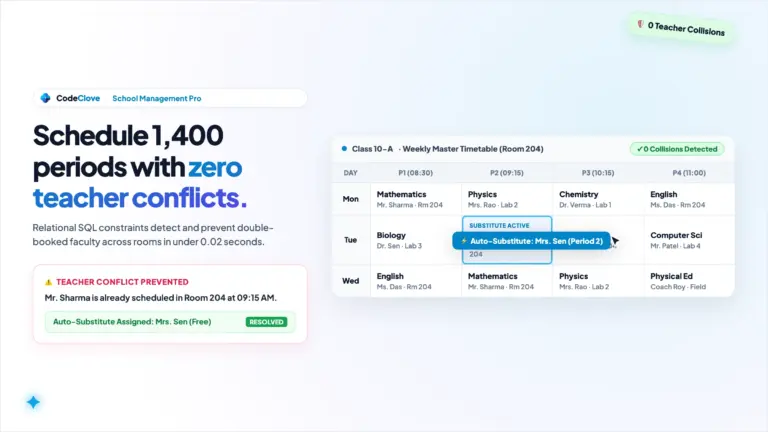
Scheduling is harder than it looks, because every period involves a teacher, a class, a subject and often a room. A good timetable module prevents double-booking and handles substitutions when a teacher is away. Simple tools only display a schedule. Better ones check for conflicts.
Parent and student portals
A logged-in view where families see attendance, schedules and fee invoices. This cuts down on routine phone calls to the office.
Communication and notifications
Email or SMS alerts, such as an absence notice to a guardian. Check which SMS providers a product supports and whether they operate in your country, because this varies a lot by region.
ID cards, reports and records
Printable student and staff ID cards, plus reports on attendance, fee collection and enrolment. Reports are only as good as the data entered, which is one more reason to get the foundation modules right.
Permissions and audit trails
This is the least glamorous module and often the most important. It controls who can see and change what. A teacher shouldn’t see fee balances, and an accounts clerk shouldn’t edit grades. Audit logs record who changed what and when, which settles disputes quickly.
Who uses it, and what each person needs
School management software is used by many roles, and each one judges it differently.
| Role | What they need from it |
|---|---|
| Owner / trustee | Visibility into enrolment, collections and outstanding dues without chasing staff |
| Principal | Reliable attendance and enrolment figures; control over who can change records |
| Front office / admissions | Fast data entry, no duplicate typing, clean applicant-to-student conversion |
| Accounts | Accurate invoices, receipts and a clear list of defaulters |
| Teachers | Attendance marking that takes seconds, not minutes |
| Parents and students | A simple place to check status without calling the school |
If a system serves the principal’s reports but frustrates teachers, attendance data will suffer. Evaluate it from the point of view of the person who will use it every day, not only the person who signs the purchase order.
What school management software does well
The benefits are practical, and most of them come from having one source of truth.
- Less duplicate entry. A student’s details are typed once and reused across admissions, attendance and fees.
- Fewer fee disputes. Invoices and receipts are recorded in one place, so there is a clear history of what was billed and paid.
- Faster answers. “How many students are enrolled in Grade 6B?” or “Who has an overdue invoice?” becomes a search, not a phone call.
- Continuity. When a staff member leaves, the knowledge isn’t locked in their personal spreadsheet.
- Accountability. Role-based access and audit logs show who did what.
- Less routine parent contact. Portals answer common questions without office time.
This is what the industry calls school automation. It doesn’t mean the school runs itself. It means repetitive steps such as copying data, generating invoices and compiling attendance are done by the system, so staff time goes to exceptions and people.
Limitations and honest trade-offs
No school software removes the need for good administration. Know these limits before you buy.
It won’t fix a broken process. If nobody agrees who approves admissions or when fees are due, software will record the confusion faster. Settle the process first.
Data quality is still your job. A report is only as accurate as the attendance and fee entries behind it.
It needs adoption. If teachers keep paper registers “just in case”, the system will always be behind. Plan training and a clear cut-over date.
No product fits every school. A single-campus K-12 school, a coaching institute and a multi-branch group have different needs. Features you don’t use still add complexity.
It isn’t a learning platform. Delivering lessons, assignments and online courses is the job of an LMS. Check whether you need one separately or whether your needs are purely administrative.
Privacy is your responsibility. Student records are sensitive. In the United States, for example, FERPA gives parents rights over their children’s education records, and other regions have their own rules. Whatever you choose, limit access by role, and check which laws apply to your school with a qualified adviser.
Hosting matters. A cloud service handles servers for you but holds your data on the vendor’s infrastructure. A self-hosted product keeps data under your control but makes you responsible for hosting, backups and updates.
Spreadsheets vs school management software
Spreadsheets are not a bad starting point, and for a very small school they can be enough. The question is where they stop working.
| Situation | Spreadsheets | School management software |
|---|---|---|
| Under ~50 students, one person managing records | Often fine | Probably more than you need |
| Several staff updating the same data | Version conflicts, overwritten cells | Shared record, role-based access |
| Linking admissions, fees and attendance | Manual copy-paste between files | One student record feeds all modules |
| Tracking who changed what | Hard to trace | Audit logs, where supported |
| Parents checking status | Not possible without sharing files | Portal access |
| Sensitive data and permissions | Whole-file sharing | Role-based permissions |
| Cost | Cheap upfront, costly in staff time | Licence or hosting cost, less manual work |
The user count here is a rough illustration, not a rule. The better test is pain: when you spend more time reconciling files than using them, it’s time to move. Typical signals are two people holding different versions of the fee ledger, admission details retyped three times, or attendance data that never matches the office’s copy.
How to choose school management software
Judge software against your own workflows, not a vendor’s feature page.
- Map your workflows first. Write down how admissions, attendance, fees and timetables work today, and where they break. This becomes your requirements list.
- Separate must-haves from nice-to-haves. Offline fee recording, student records and attendance are usually must-haves. Online payments, SMS and analytics may be later additions.
- Check regional fit. Payment gateways, SMS providers, academic structures and report formats differ by country. A feature that isn’t available in your region isn’t a feature for you.
- Understand the hosting and data model. Ask where data is stored, who can access it, how you export it, and what happens if you leave.
- Test with your own data. Import a real class list, create a real invoice and mark real attendance. A demo with sample data hides the friction.
- Review permissions. Confirm you can restrict what each role sees.
- Check support and updates. Ask how fixes are delivered, what support is included and how long a product has been maintained.
- Count the total cost. Include licences, hosting, payment gateway fees, SMS charges, training and the staff time needed to migrate.
- Start small if you can. A free or trial version lets you validate the core workflows before committing to paid features.
How to implement it without disrupting the term
Most failed rollouts fail on change management, not on the software itself.
- Choose an owner. One person, usually an administrator, is accountable for setup and rules.
- Clean your data first. Fix duplicate students, inconsistent class names and missing guardian contacts before importing.
- Set up the structure. Create the academic session, classes, sections, subjects and fee structures before entering students.
- Pilot on one workflow. Start with student records and attendance, or with admissions, and add fees once the basics are stable.
- Train by role. Teachers need attendance training. Accounts needs invoicing. Don’t run one session for everyone.
- Pick a cut-over date. Run old and new systems in parallel briefly, then retire the old one so staff don’t keep two sets of records.
- Review after one term. Check what staff still do outside the system and fix those gaps.
Where CodeClove fits
If your school already runs a WordPress site, or you prefer to keep records on infrastructure you control, a WordPress-based tool is one option. CodeClove offers a self-hosted school management plugin with a free version and a Pro version. It is one option among several, and the right choice depends on your needs.
The free plugin is built for K-12 schools, coaching institutes and colleges. According to its WordPress.org listing, it covers:
- A setup wizard with country presets
- Student, guardian and staff records, with no stated limits on numbers
- An admission form with one-click conversion of an applicant to a student
- Fee types, invoices, offline payment records and printable receipts
- Attendance
- A basic frontend portal for students and guardians
- Printable student ID cards
- Role-based access control
The listing also states that the free plugin makes no external network calls and that Pro uses the same database tables, so records carry over on upgrade. It requires WordPress 6.5 or later and PHP 8.1 or later.
School Management Pro is the paid upgrade. CodeClove’s product page lists the following additions:
| Need | Free | Pro |
|---|---|---|
| Student, staff and guardian records | Yes | Yes |
| Admissions and fee invoicing (offline payments) | Yes | Yes |
| Basic student and guardian portal | Yes | Yes |
| Online fee payments (such as Stripe, PayPal, Razorpay, UPI) | No | Yes |
| Timetable builder with conflict checking and teacher substitutions | No | Yes |
| SMS notifications, such as absence alerts | No | Yes |
| Revenue analytics and defaulter tracking | No | Yes |
| Granular permissions and audit logs | Basic role-based access | Extended |
| Year-end promotion and session rollover | Yes | Yes |
Feature lists change, so confirm the current details on the product pages and in the documentation before you decide. The docs, for example, describe the student directory, CSV import and ID card generation in detail.
A sensible path: install the free plugin and run your admissions, student records, offline fees and attendance for a term. Move to Pro when you hit a specific need, such as collecting fees online, building a timetable without clashes, or sending absence alerts. If you’d like to see the Pro workflows first, the public Pro demo lets you explore the interface.
Try the free CodeClove School Management plugin →
The short version
School management software earns its place when it connects the steps a school already performs: admission, enrolment, attendance, fees, timetables and parent communication. The best way to evaluate one is to follow a single student through your own year and see where the software saves a re-entry or answers a question without a phone call.
Settle your processes, clean your data, start with a small set of workflows and expand once staff trust the system. The software then becomes the school’s record of truth and not one more place to update.
Frequently asked questions
What is the difference between school management software and a school ERP?
In practice, very little. “School ERP” borrows from business software and often implies a broader suite, while “school management software” is the plainer term. Vendors use both loosely, so compare actual features and not names.
What is the difference between an SIS and school management software?
An SIS focuses on student records such as enrolment, attendance, grades and transcripts. School management software usually adds operational areas like fees, timetables, staff administration and communication. Some products marketed as an SIS include these extras, so check the feature list.
Do small schools need school management software?
Not always. A very small school with one person handling records may manage with well-organised spreadsheets. Software starts to pay off when several people update the same data, fees need tracking, or parents need self-service access.
Is school management software the same as a learning management system?
No. An LMS delivers course content, assignments and online learning. School management software handles administration such as admissions, attendance and fees. Some schools use both.
Can I run school management software on WordPress?
Yes, some products are built as WordPress plugins. You gain control over hosting and data, but you take on responsibility for hosting quality, backups, updates and security. Confirm the plugin’s WordPress and PHP requirements before installing.
How long does it take to set up?
It depends on the school’s size, how clean your existing data is and how many modules you launch at once. A phased approach, starting with student records and attendance, is usually less disruptive than switching everything at the same time.