Table of Contents
How to build a conflict-free school timetable in WordPress (with substitute teacher engine)
Building academic schedules in Excel or Google Sheets leads to two common failure points:
1. Hidden double-bookings: Discovering during week one that a teacher or lab is assigned to two classrooms at the same time.
2. Morning substitute chaos: Scrambling at 7:30 AM through printed spreadsheets to find available teachers when faculty call in sick.
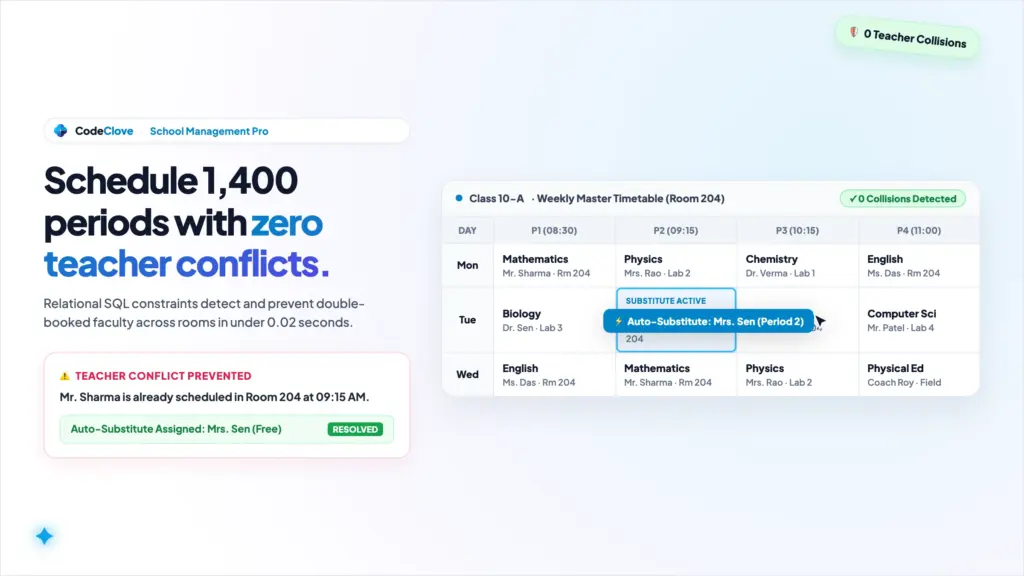
A relational WordPress timetable plugin eliminates both problems. CodeClove School Management Pro stores periods as indexed database records linking subjects, teachers, classrooms, and time blocks. If an assignment creates a conflict, the system blocks the save immediately.
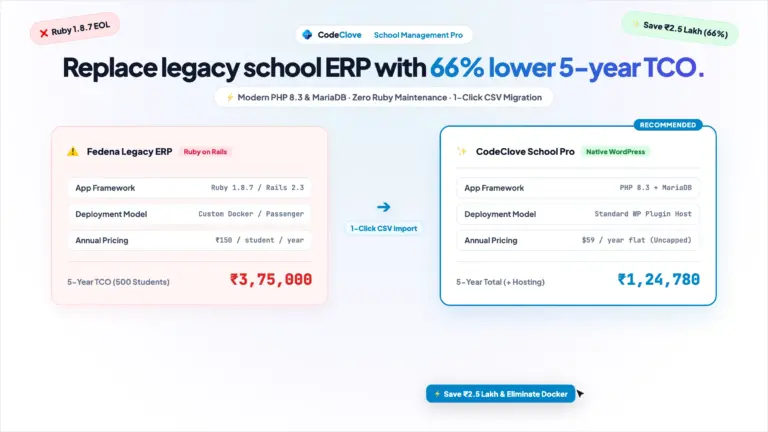
Proprietary SaaS platforms charge $3,000 to $15,000 annually for scheduling modules. Managing timetables on self-hosted WordPress provides automated collision checks, one-click substitute lookups, and parent portal syncing for a flat $59 per year. For pricing comparisons, see our guide on SaaS fees.
Interactive Sandbox Demo. Test the live timetable grid, trigger a teacher double-booking alert, and assign a daily substitute in the CodeClove School Management Pro sandbox demo. The environment resets every 2 hours.
Key Takeaways
– Spreadsheets fail relational checks: Manual sheets cannot cross-reference teacher availability, room occupancy, and weekly subject caps across multiple tabs.
– Automated collision detection: CodeClove validates four constraints in real time: teacher availability, room capacity, weekly subject hour caps, and daily workload limits.
– 60-second substitute matching: Cross-references daily staff attendance against master schedules to suggest unbooked, subject-qualified faculty instantly.
– Live portal synchronization: Schedules update automatically in teacher dashboards and family portals without printing PDFs or messaging chat groups.
– Flat pricing ($59/yr): Cuts annual scheduling software costs by thousands compared to recurring cloud SIS subscriptions.
Why spreadsheet timetables fail after week one
Scheduling 20 classes across 45 faculty members involves managing over 1,400 period slots every week. Two-dimensional spreadsheets cannot validate overlapping relational dependencies.
Moving a class in Excel does not alert you if that instructor is already booked in another tab, or if the science lab is occupied. Administrators spend hours every week reconciling errors and locating substitutes. Relational timetable logic reduces this administrative overhead to minutes.
Comparison: Excel spreadsheets vs CodeClove timetable builder
| Operational workflow | Manual spreadsheets | CodeClove School Management Pro |
|---|---|---|
| Teacher double-booking | Unnoticed until two classes clash on Monday morning. | Blocked instantly by real-time SQL validation queries. |
| Room and lab collisions | Shared science and computer rooms get overbooked. | System flags conflicts before saving if a room is occupied. |
| Daily substitute scheduling | Requires paper checking and phone calls at 7:30 AM. | Displays available teachers with open periods in one click. |
| Schedule distribution | Manual PDF exports and messaging across parent groups. | Live updates inside teacher dashboards and parent portals. |
Step 1: Set up your academic structure and prerequisites
Before building the schedule, configure four baseline records in WordPress:
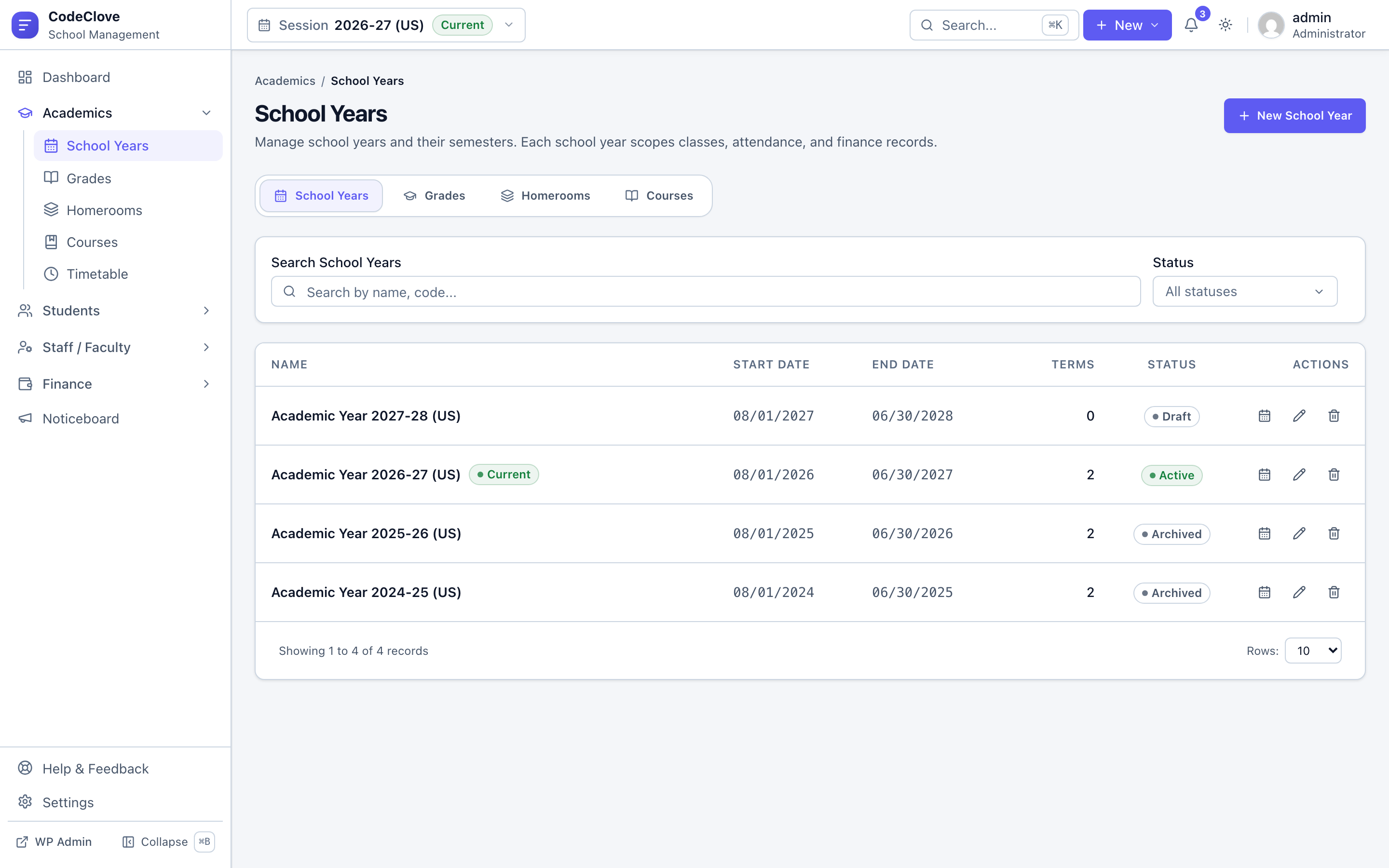
- Academic session: Set your active school year (
2026-2027) as default. Timetables attach to session IDs so past schedules stay archived. - Classes and sections: Add grade levels (Class 9, Class 10) and attach sections with default rooms and shared laboratories.
- Subjects with caps: Create subjects with codes (
MATH-101) and define a Maximum Weekly Periods cap (e.g., 6 periods/week). - Teacher profiles: Link staff members to subjects and assign daily workload caps (e.g., 5 periods/day).
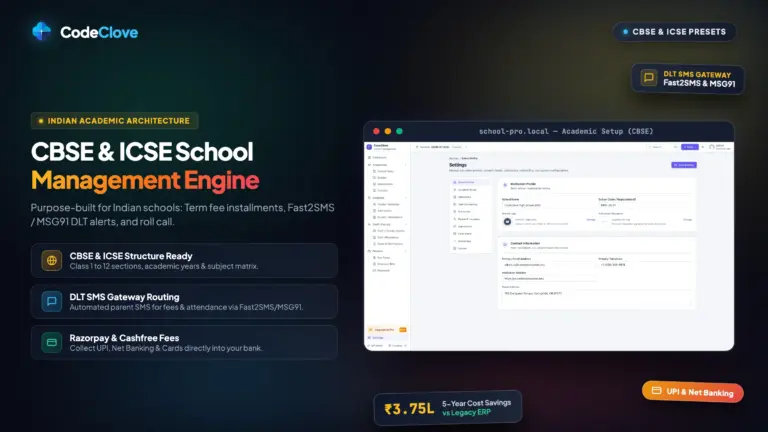
Select regional structures (CBSE/ICSE, US K-12, UK) under Settings > Academic Presets. For regional configuration details, see our setup guide on CBSE/ICSE India. Complete your school admissions WordPress intake first so section headcounts align with room capacities.
Step 2: Open the timetable builder to assign periods and durations
Navigate to School Management > Timetable > Period Slots to establish your bell schedule once for all classes:
- Assembly / Homeroom: 08:00 AM to 08:20 AM (20 mins, non-instructional).
- Periods 1 to 3: 08:20 AM to 10:35 AM (three 45-min teaching blocks).
- Morning Break: 10:35 AM to 10:55 AM (20 mins).
- Periods 4 to 6: 10:55 AM to 01:10 PM (three 45-min teaching blocks).
- Lunch Break: 01:10 PM to 01:40 PM (30 mins).
- Period 7: 01:40 PM to 02:25 PM (45 mins).
Next, open Timetable > Builder. Select your class, section, and session. The screen displays a weekly matrix. Click any empty cell to assign the subject, teacher, and room. For science labs, check Span 2 Consecutive Periods to book a 90-minute block.
Step 3: Run the conflict detector to prevent double-booking
The conflict detector runs real-time verification before writing to the database. If any constraint fails, the system highlights the cell and blocks the save operation.
The validation checks execute in four milliseconds:
1. Teacher availability: Verifies the teacher is not already assigned to another class during that period.
2. Room occupancy: Ensures shared rooms (e.g., Computer Lab) are not double-booked.
3. Weekly subject caps: Prevents scheduling beyond the configured weekly period limit for that course.
4. Workload limits: Displays warnings if an assignment exceeds daily teacher period quotas.
Step 4: Publish the timetable to parent portals and dashboards
Publishing the timetable routes updated schedules to all roles automatically:
- Teacher dashboard: Faculty view a personalized weekly schedule covering all assigned classes and rooms.
- Parent portal: Families view the live timetable with a multi-child switcher inside the parent portal.
- Printable exports: Administrators can print clean CSS master schedules filtered by class or teacher.
Embed the schedule portal on any page using the shortcode:
[codeclove_portal]
Step 5: Assign substitute teachers in 60 seconds
When a teacher is marked absent in the daily attendance tracking module, CodeClove automatically flags their assigned periods as Uncovered.
Four-step substitution sequence:
- Open the queue: Go to Timetable > Substitutions and select today’s date.
- Select an uncovered slot: Click Assign Substitute next to the open period.
- Select from ranked faculty: The engine filters out absent teachers and those currently in class, presenting available faculty in three tiers:
- Tier 1: Same subject qualification with an open period.
- Tier 2: Same department or grade level with an open period.
- Tier 3: Remaining available faculty sorted by lowest daily teaching load.
- Confirm assignment: Saves a date-specific substitute record without modifying the master weekly schedule, and updates the parent portal with a temporary substitute badge.
For non-teaching staff attendance and payroll, pair your installation with our WP ERP alternative (HR Press Pro).
Step 6: Handle schedule edge cases non-destructively
- Half-day timings: Create an alternate bell schedule (e.g., six 30-minute periods) and apply it to specific dates while preserving master teacher assignments.
- Examination weeks: Use calendar overrides to freeze regular class timetables during exam dates and display exam schedules in student portals.
- Assembly blocks: Lock specific periods school-wide for special events or guest lectures without editing recurring schedules.
Running schedules on your server keeps student records protected and under your control. Read our analysis of self-hosted vs SaaS, and link term schedules to school fee collection for synchronized fee notices.
Frequently asked questions
Can WordPress manage school timetables?
Yes. CodeClove School Management Pro uses dedicated relational database tables to manage multi-class timetables, preventing collisions with real-time SQL validation queries.
What happens when two teachers are assigned to the same period?
The conflict detector blocks the assignment before it saves. A red warning alerts the administrator to the exact teacher, room, and period conflict.
How do I assign a substitute teacher in WordPress?
When a teacher is marked absent, open Timetable > Substitutions. The system displays available teachers with free periods, ranked by subject qualification. Click confirm to assign the replacement.
Does the timetable sync with the parent portal?
Yes. Published schedules and daily substitute assignments appear immediately in the parent and student portal via the [codeclove_portal] shortcode.
Is there a free WordPress timetable plugin for schools?
General event calendar plugins display static tables, but cannot validate teacher double-bookings or manage daily substitutes. CodeClove School Management Pro provides a complete conflict-free engine for a flat $59 per year.
Stop fighting spreadsheet collisions every Monday morning
Replace manual spreadsheets with automated SQL validation that prevents double-booking. For $59 per year flat, CodeClove School Management Pro gives your campus conflict-free scheduling, substitute matching, parent portal access, fee collection, and attendance tracking on infrastructure you own.
- Try the live builder: Open the CodeClove School Management Pro Sandbox Demo to test period creation and conflict alerts.
- Get the plugin: Download CodeClove School Management Pro for $59/yr.